Device Owner setup
Provisioning
This page contains the QR code required to provision Nötkey as Device Owner during Android's initial setup after a factory reset.
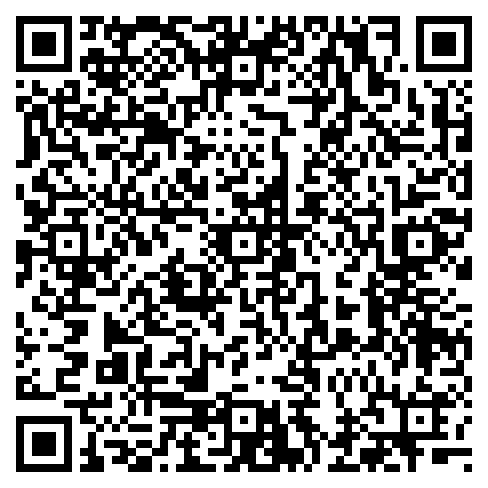
Scan this QR code during Android setup. Use another device to display this page.
Quick setup summary
Requirements
Your Google account must be included in the Nötkey Closed Test to install from Google Play during provisioning.
Your phone must be online during provisioning so Android can download Nötkey from Google Play.
Device Owner provisioning requires a Guardian, Sentinel, or Sentinel Pro subscription.
If you complete the Android setup wizard without scanning this QR code, you must factory reset again.
Device Owner can only be granted during initial setup. There is no way to correct this after the setup wizard completes without performing another factory reset.
Full provisioning guide
The quick summary above covers the essentials. For a complete step-by-step walkthrough including backup checklist, troubleshooting, and profile configuration, read the full guide.
Read the full provisioning guide →